

Shopping list
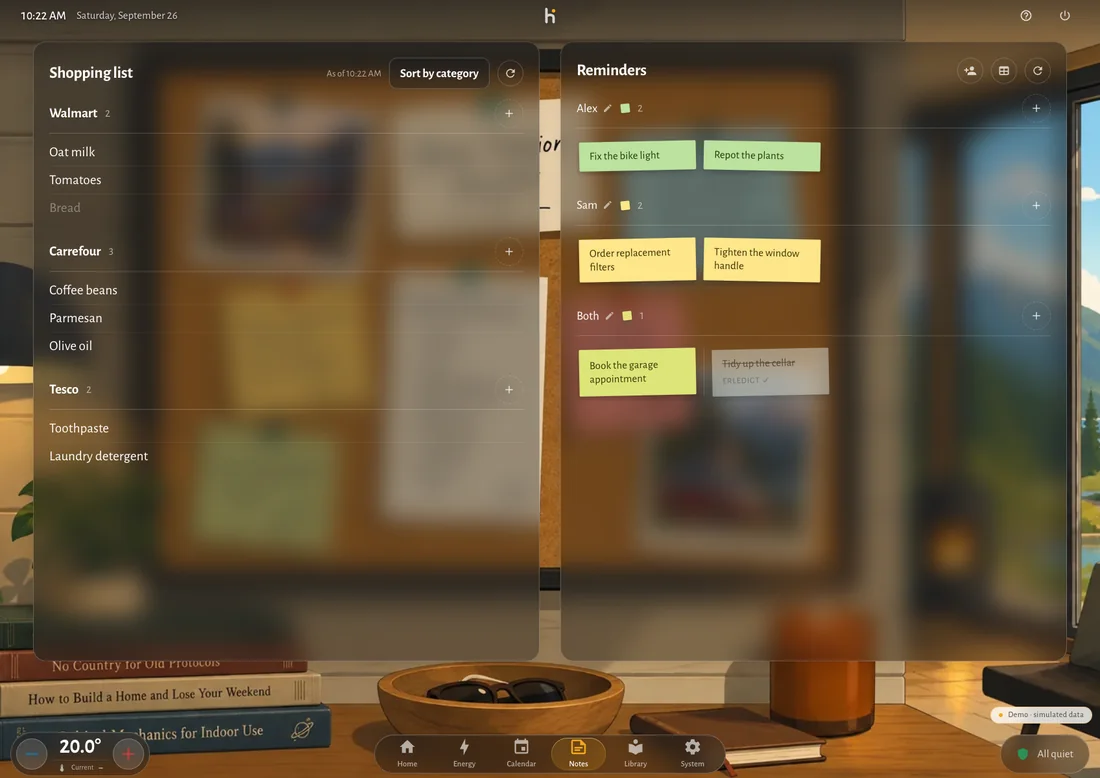
Every shop is a list. Items are grouped by shop and, inside a shop, by category in the order you walk through it.
Sources
Section titled “Sources”- Home Assistant to-do lists (default). Every shop is a
todo.*entity, for example from the Local To-do integration. The same list works in the Home Assistant app and with voice assistants. As a Home Assistant App, Hauser can create a list for you. - Notion (optional). A shared page where shops are headings and items are checkboxes. See Notion.
- Bring! (through Home Assistant). Once the Bring! integration is set up, every Bring list is a
todo.*entity like any other. See below.
Bring!
Section titled “Bring!”If your family keeps its list in the Bring! app, Hauser can show and tick off the very same list. There is nothing to install in Hauser:
- In Home Assistant, add the Bring! integration (Settings → Devices & services → Add integration → Bring!) and sign in with your Bring! account. Every Bring list becomes a to-do entity, for example
todo.einkauf. - In Hauser, open Settings → Content → Shopping list → Manage shops, pick a shop and choose the Bring list under List in Home Assistant.
Items you tick off or add in Hauser reach the Bring! app right away. Items added in the Bring! app take a moment to arrive: Home Assistant asks Bring! every 90 seconds, and Hauser refreshes every five minutes or when you pull the refresh button. The badges urgent, if convenient and offer stay in the Bring! app.
The iOS app follows the same binding when it runs with Home Assistant. With Apple Home there is no Home Assistant in between, so the lists of the Reminders app are the shared list there.
Settings
Section titled “Settings”Settings → Content → Shopping list:
- Manage shops adds shops, renames them and binds them to lists. A shop is just a name and a list, so one shop called “Groceries” for a single list is as fine as three supermarkets.
- Category order sets the route through the products per shop.
On the panel
Section titled “On the panel”The Notes screen shows the list on the left. Add an item per shop, tick it off, sort and refresh.
On the phone
Section titled “On the phone”A quiet checklist: tap a row to tick it. The item stays under its shop for a day, struck through, and a tap brings it back if your finger slipped; five seconds to undo as well, and an Add item row per store. See Phone layout.
On the standby screen
Section titled “On the standby screen”The open items appear at the left of the standby screen.