

Room pictures
A picture makes a room recognisable before you read its name. Hauser uses prepared day, evening and lights-off versions, selected according to the sun and the room’s lighting state. These are variants of the same room, not a live camera view.
Choose how to make yours
Section titled “Choose how to make yours”Hauser does not charge for the wizard. It cannot promise that a provider is free, available or included in your existing plan. Generation is optional; everyday room control works without it. The hosted demo does not generate pictures.
1. Keep the defaults
Section titled “1. Keep the defaults”The bundled illustrations come from the maker’s home. Hauser selects a default for each room by name. You can replace it later or restore it after removing a custom picture.
2. Upload your own
Section titled “2. Upload your own”Open Settings → Home → Rooms & devices, tap the room’s picture and upload a JPEG, PNG, WebP or AVIF. Hauser derives darker evening and lights-off versions plus a locally muted overcast version, without an AI call. Missing overcast versions of older uploads are filled in after an update; supplied versions are preserved. An upload does not recreate the room or find its windows; use the editor if you want to mark window areas for weather effects.
Adjust an existing picture
Section titled “Adjust an existing picture”Open the room’s picture settings. Once a custom picture is assigned, the overview shows its preview and creation method, followed by Windows and the lighting variants. Mark or adjust the windows here, without reopening the wizard. Draw a rectangle over each pane, then drag its corners to fit slanted or perspective windows. Existing polygon markings keep their shape. Tap inside a marking to remove it. On a phone, draw directly on the image.
For uploaded pictures, replace individual variants or derive them again from the day picture, including Overcast. The local overcast version mutes the colours and brightness; it does not redraw sunlight or shadows already in the illustration. For manually created pictures, the prompts are available with each variant. Generated sets show their available versions. Older pictures without a recorded method use a general source label.
Use Change method to choose another creation path. The choices to upload, use the library or open the wizard remain below the current picture under Use a different picture. If no custom picture is assigned, these choices form the initial setup instead.
The native iOS app offers the same overview. Changes to Home Assistant room pictures are saved to the shared server; Apple Home pictures stay on the device.
3. Let the wizard draw it
Section titled “3. Let the wizard draw it”The wizard turns a selected photo into an illustration in Hauser’s style. The example below is the existing source photo and the illustration used for the demo living room. Generated results need your review.
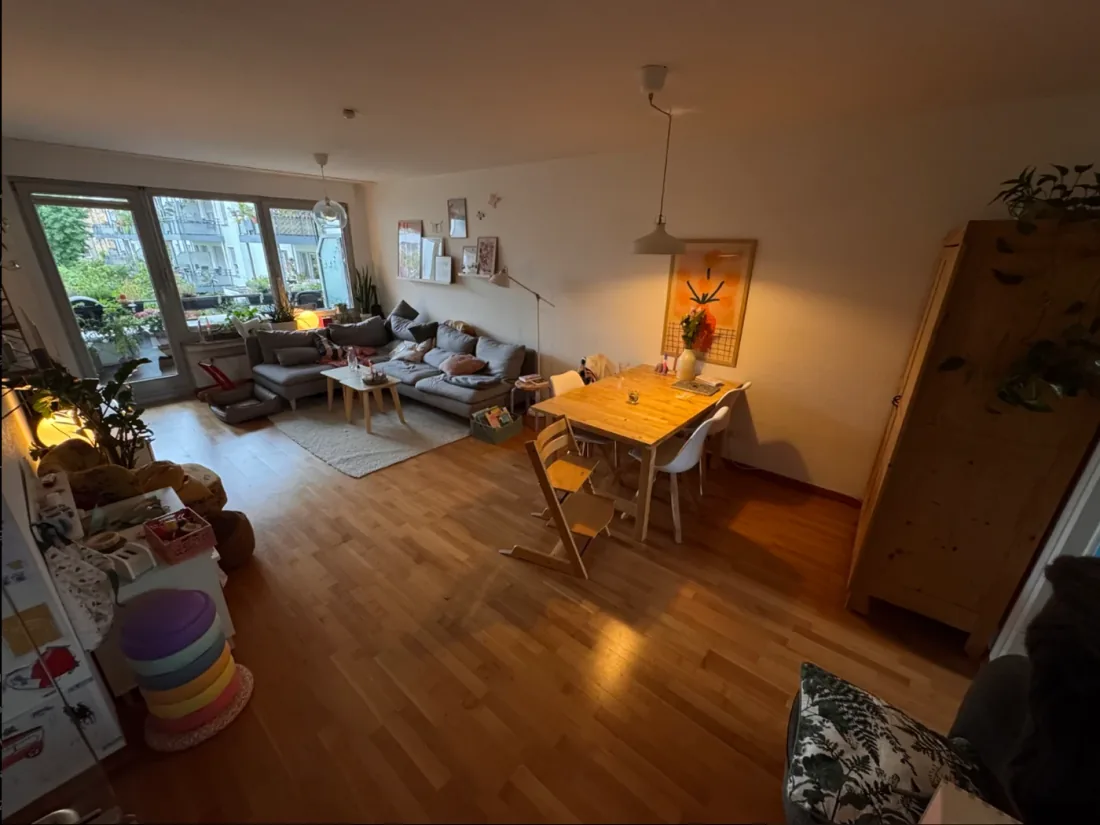
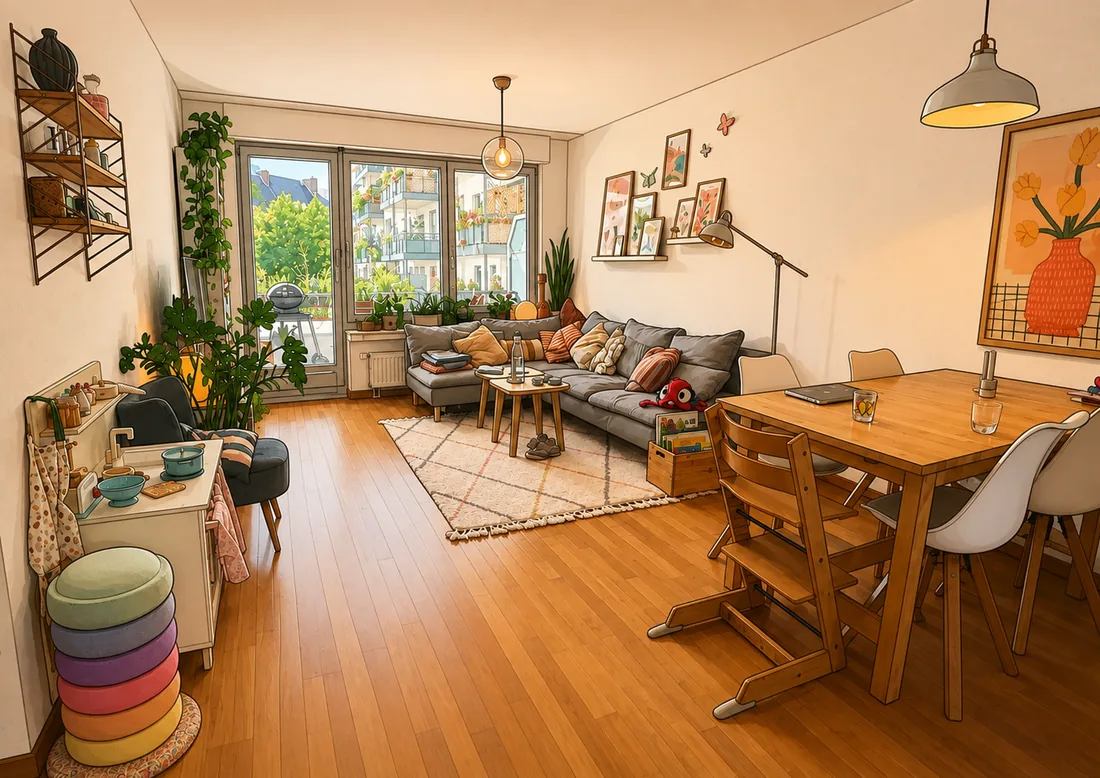
- Open Settings → Home → Rooms & devices → Create room images, or the room’s picture menu.
- Choose a provider and connect your own access. The wizard guides this one choice at a time; you can change it later in the header.
- Select the room and photo, then choose the crop and focus point.
- Create and review the variants. OpenAI generates the lighting variants and analyses visible surfaces. With Cloudflare, Hauser derives darker variants from the day image; you mark the windows yourself.
- Publish the reviewed set. Hauser activates it together and derives the smaller phone images.
An overcast variant can support rainy-day scenes. Outside (energy) is also a target: a house picture becomes the stage of the energy screen.
4. Draw it yourself
Section titled “4. Draw it yourself”Choose you draw it yourself to use the image service you prefer. That service determines any cost and how your photo is handled. Hauser provides a workbench with one card per variant: day, evening, lights-off and overcast.
- Download the input image for the pass: the original photo for day, or the accepted day illustration for later variants.
- Copy the prompt and use it with that image in your chosen service.
- Upload the finished image to its matching card. Review which variants are supplied, derived from day, or still missing.
Under Windows, mark each pane so that rain and snow stay inside those areas. This also works for sets generated with Cloudflare. Hauser does not send a photo to the service for you in this manual path.
The library
Section titled “The library”Finished sets stay in the library under Rooms & devices. Assign a set to a room, switch between sets or delete an old one. Assigning a set updates that room’s picture.
Devices in the picture
Section titled “Devices in the picture”In the room configuration, Assign devices gives every device of the room a spot in its picture. A lamp gets a light zone: drag the corners to stretch it into an ellipse and the handle on top to turn it, so it can follow a lampshade or the table it lights. Every other device gets a point.
Tapping a placed device in the picture does what tapping its tile does, holding it opens the detail, and a soft ring confirms the tap. A camera brings its image to the front. In the Image control view of the home screen, the picture is the only control.
The light zones also shape the night glow. When the last lamp goes out, the room moves to its lights-off variant. These effects use the prepared images; they do not regenerate the room for each command.
In the native iOS app
Section titled “In the native iOS app”The native app has its own image workflow and provider availability. Apple Intelligence image generation is experimental and depends on the OS, hardware and beta build; do not rely on it as part of the standard setup. Local model support for the web server remains roadmap work.