

Energy
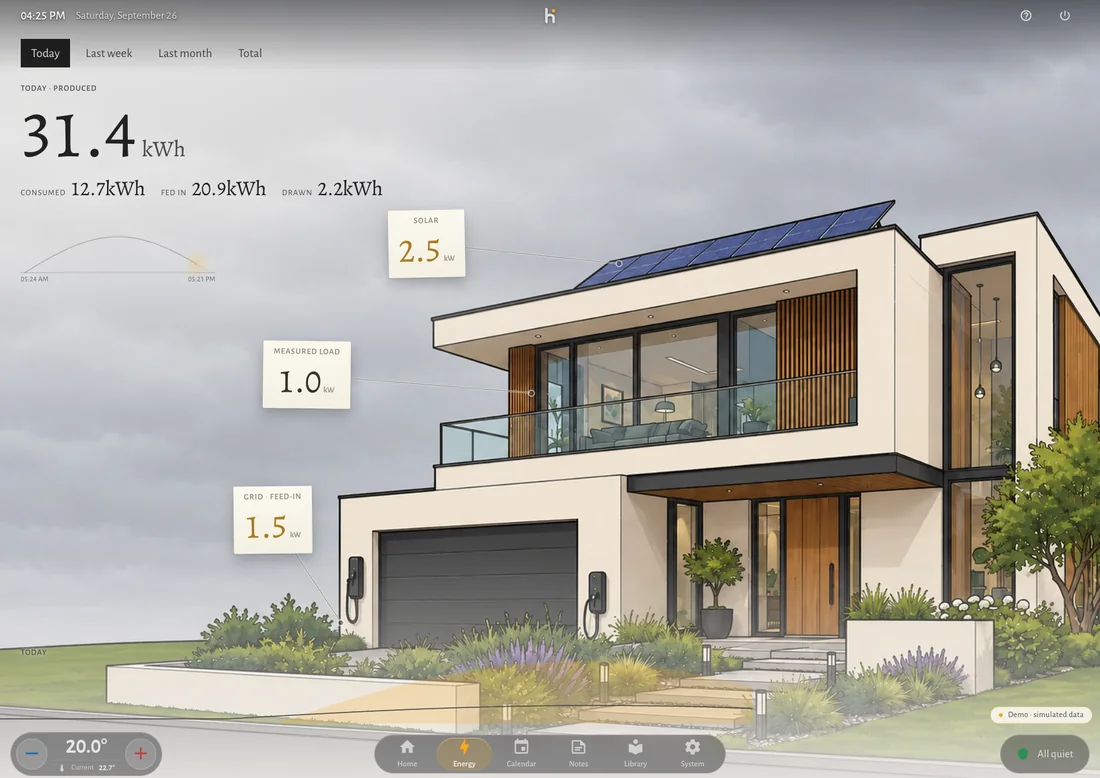
The energy screen is a picture of a house. Live production, measured load and the grid sit as small paper notes in the picture, each pinned to the thing it measures. The free wall carries the day’s figures.
What it needs
Section titled “What it needs”Power sensors in Home Assistant. Settings → Connections → Services → Energy lists power sensors for production and consumption, plus home-battery charge level and optional battery power. Several production sources are summed. The initial selection can include every discovered power sensor; review it before saving. Take all is not a check that the selection measures the whole house without overlap.
Starting from scratch with an agent? Use the beginner setup guide.
What it shows
Section titled “What it shows”- Now: live power from the selected sensors. Several plugs are called Measured devices, not a house load. The live grid figure is calculated from production plus battery discharge minus selected consumption; positive means export, negative means import.
- Battery: the selected home battery’s charge level; optional power indicates charging or discharging. Hauser expects positive battery power for discharge and negative for charge.
- Web history: the day’s curve uses five-minute statistics. Week, month and total use Home Assistant’s Energy dashboard counters, including battery flows in the period consumption balance. Total needs counters; week and month can fall back to integrating power statistics. Daily figures use configured daily sensors and, for production/import/export in the web interface, dashboard statistics where available.
- What the house cannot measure gets no note. No dashes, no zeros.
Guided energy setup
Section titled “Guided energy setup”This workflow is for an agent and a Home Assistant household. Ask one question at a time, perform authorized work with the tools available, and verify the result before moving on. The goal is to account for all equipment the user already has and all available relevant measurements.
1. Check the equipment against Home Assistant
Section titled “1. Check the equipment against Home Assistant”Ask what is installed before relying on discovery. Include rooftop and balcony solar, each inverter, each home battery, the main electricity meter, heat pump, EV charger and other consumers the user wants to see. Include smart plugs, submeters and circuit meters that already measure those consumers. Ask about devices present in a vendor app but absent from HA.
Build a private table as you go. Use the actual entity/statistic IDs locally; the row below is a template, not a sensor to create.
| Equipment and model | HA integration and entity/statistic | Measurement, unit and direction | Destination and coverage | Status / next action |
|---|---|---|---|---|
| User’s inverter, meter, battery or consumer | Actual source ID, or missing | Live power, energy counter, daily energy or charge level | HA Energy role; Hauser role; what is included | Verified, missing, unsupported, collecting history or declined |
Compare the table with Settings → Devices & services and the relevant entities’ current readings. Check whether each physical source has both its live measurement and energy counter where supported. A battery percentage alone does not describe charging power or stored energy in kWh. A switch entity alone does not measure consumption.
Check: the user confirms the equipment list, including items still absent from HA. Do not mark an empty discovery result as “no solar” or “no battery”.
2. Help connect anything missing
Section titled “2. Help connect anything missing”For each missing device, identify its exact model and read the matching official HA integration and manufacturer instructions. Walk through discovery or Add integration, the required local address or vendor sign-in, and any API permission or bridge it actually needs. Users enter credentials privately. Reuse a working integration instead of adding a duplicate local/cloud representation of the same meter.
The official energy guides cover solar and inverters, home batteries, grid meters, and individual consumers. If a device needs extra measurement hardware or has no supported integration, record the specific gap and help the user identify a compatible route. Do not buy hardware or represent a device’s nameplate rating as measured power. Electrical cabinet work and mains wiring belong with a qualified installer; this walkthrough covers configuration of equipment already safely installed.
Check: every connected source has a current numeric reading consistent with its vendor app or meter, allowing for update delay. Fix unavailable entities and wrong device selection before mapping them. Restore any safe test load to its starting state; do not force battery cycles or change inverter settings to test the display.
3. Distinguish power, energy and charge level
Section titled “3. Distinguish power, energy and charge level”| Reading | Typical unit | Used for |
|---|---|---|
| Power right now | W or kW | Hauser production/consumption and optional battery power |
| Accumulated energy | Wh or kWh | HA Energy counters and period statistics |
| Energy since local midnight | Wh or kWh, resets daily | Hauser’s explicit daily KPI bindings |
| Battery state of charge | % | Hauser’s home-battery charge level |
Check the actual source and attributes, not just a friendly name. HA statistics
normally need device_class: power with state_class: measurement, or
device_class: energy with state_class: total/total_increasing. For charge
level use device_class: battery and %. Check recording and statistics errors
in HA’s Tools → States/Statistics (called Developer tools in older
versions). See the HA energy FAQ.
Correct the underlying integration or a properly defined helper; changing a
unit label does not convert a measurement.
If only power is available and an energy counter is needed, use
Settings → Devices & services → Helpers → Create helper → Integral with the
Integral instructions.
For W input, prefix k and integration time h produce kWh; for kW input,
do not apply the extra k conversion. Choose a method appropriate to the
sensor’s updates and mark the result as calculated from sampled power. It
starts accumulating from setup and cannot recover missing history.
If a daily value is needed from a cumulative energy counter, use a Utility Meter helper with a daily cycle. Match reset/delta options to the actual source. Its first day is partial. Reuse a trustworthy native daily sensor if one already exists. Do not use a lifetime total directly as “Today”.
4. Configure the Home Assistant Energy dashboard
Section titled “4. Configure the Home Assistant Energy dashboard”Open Settings → Dashboards → Energy and review existing sources before adding any. Assign the actual counters to their roles:
| HA Energy role | Assign |
|---|---|
| Electricity grid consumption | Energy imported from the grid |
| Return to grid | Exported energy, if measured |
| Solar production | Each independent solar production counter, without also adding an overlapping inverter total |
| Battery storage | Energy entering the battery for charge; energy leaving it for discharge |
| Individual devices | Each metered consumer’s energy; account for upstream meters and subdevices |
Configure live power alongside energy where the installed HA version offers it. Verify direction against the meter or vendor app. Do not confuse net grid power with total house consumption. Keep absent measurements absent. For device hierarchies, use HA’s upstream-device relationship where appropriate. Save and check the dashboard’s readings using the official energy guide.
Check: configured statistics exist and have no reported errors. Newly enabled counters need time to collect data. Note their start time instead of promising full historical graphs immediately. Keep separate cumulative sources separate when their resets differ; a summed resetting counter can corrupt statistics.
5. Map the readings into Hauser
Section titled “5. Map the readings into Hauser”Enable the Energy page in Hauser’s page/module settings if it is hidden. In the web interface open Settings → Connections → Services → Energy. In native iOS with a paired HA server, open Rooms & devices → Energy sensors → Choose. Both save into the same household configuration; use one editor, save, then refresh the other client.
| Hauser field | Select | Exclude |
|---|---|---|
| Production | Actual PV production power for each independent source | PV forecast, kWh counters, duplicate string/inverter totals; battery power also assigned as battery |
| Consumption | Either the whole-house consumption power sensor, or a set of non-overlapping measured consumers | Grid import/export, generation, battery charge/discharge, and overlapping whole-house/circuit/device measurements |
| Home battery → Charge level | The home storage system’s percentage sensor | A phone, door contact or other small device’s battery |
| Home battery → Power | Signed net battery power: discharge positive, charge negative | Energy counters, percentage, or an unsigned charge-only reading |
Several producers and selected consumers are summed. Do not select a whole-house meter and its plugs together just to make every device appear: that counts the same load twice. HA can retain the individual-device breakdown even when Hauser uses a single house-load measurement. If only plugs are available, call the result measured devices, not total house consumption.
For opposite battery sign conventions or separate charge/discharge sensors, help create a Template sensor using the documented source meanings: net battery power is discharge minus charge. Give it power metadata and consistent units, and keep it unavailable when required inputs are unavailable. Verify both signs when those states occur naturally. Do not count the same battery in Production as well.
Hauser has one battery charge-level binding and one battery-power binding. For several batteries, prefer the vendor’s system-wide readings. If none exist, record the limitation; never add percentages together or claim one battery represents them all. The live grid figure is a calculation, with no separate grid-power picker. It represents the house connection only when the selected production, load and battery readings cover that same house boundary. A battery without power or a partial consumer list leaves that calculation incomplete; compare with the actual meter and record the coverage.
Save, apply the web interface’s reload prompt and reopen Energy. Reopen its settings to check that the saved selection persists.
6. Check daily values and client limits
Section titled “6. Check daily values and client limits”The web interface can read solar, import and export statistics from the HA Energy dashboard. Explicit daily KPI bindings take precedence where present. The production/consumption/battery picker does not expose daily KPI fields. Native iOS reads configured daily KPI sensors; it does not automatically gain the web dashboard-statistics fallback. Its Week/Month/Total views currently report that statistics are unavailable. Record that as a client limit instead of repeatedly changing correct HA sensors.
For an agent configuring explicit daily values, the household’s energy.kpis
uses producedToday, consumedToday, fedInToday and drawnToday. Each must
reference an actual daily energy sensor, not a lifetime counter or power
sensor. Follow the configuration contract
and household configuration reference.
An agent with authorized local Hauser API access can read
GET /api/household-config, retain its ETag and the existing live selection,
then submit PUT /api/household-energy with If-Match, the existing
production, consumption, battery: { level, power }, and the verified kpis
bindings. These are Hauser endpoints, not HA Core endpoints; a HA token alone
does not supply this connection. On HTTP 412, reread before saving. Do not
replace the household with a generic example. Reread after saving and refresh
each client. Existing KPI values are retained when omitted or sent as null;
that is not a way to clear an incorrect old binding.
Only make daily bindings when their corresponding measurements exist. If the agent lacks a supported editing path, retain the verified web setup and name the missing native daily mapping as pending. Daily solar/grid balance displays are not a separate battery-adjusted household energy audit; do not use them to certify battery losses or exact solar self-consumption in a storage system.
7. Finish with a coverage check
Section titled “7. Finish with a coverage check”Compare Hauser with HA and the source readings at approximately the same time, using the same units and period. Check each producer, measured load and battery percentage, plus charging direction when available. Check grid flow against the real meter only if the selected measurements cover the whole house. Check web periods that have recorded data, and native daily values if used. Allow for sensor update intervals, not unexplained sign errors or a factor of 1,000. Preserve missing/unavailable readings as such rather than substituting zero.
Done when: every item in the confirmed inventory is connected and mapped, or has a named gap with the exact next action. Record each role’s sensor, measurement coverage, duplicates excluded, available history, client checks and remaining limits in the setup checkpoint. “Saved” alone does not complete energy setup.
External energy instructions checked on 19 October 2026. Check the installed HA version and device integration documentation when screens or sensors differ.
Your own house
Section titled “Your own house”The room-image wizard and the library offer Outside (energy) as a target. An image set assigned there becomes the stage of the energy screen, day and night. The wizard knows solar modules, so the generation note hangs on the real panels.
The picture’s menu
Section titled “The picture’s menu”In edit mode, press and hold the background: create your own house with the wizard, pick a picture from the library, move the notes, or jump to the sensor assignment. Notes and their pins can be dragged. Done keeps the arrangement, Reset returns to the template.
On the phone
Section titled “On the phone”The phone tells the story behind the numbers: power now, the period with a load curve and a comparison with yesterday, and a Top consumers list. The house picture lies pale behind the figures; the notes pinned into it stay on the wall panel.